Copyright ©2025 Fabric | Xytech Help Document Version 1.13
Need Help? Start Here — Welcome to Xytech Help | Xytech Basics | Xytech Notable Features | Using the Help - Best Practices | Xytech Support Web Site
Service Visualizer Window
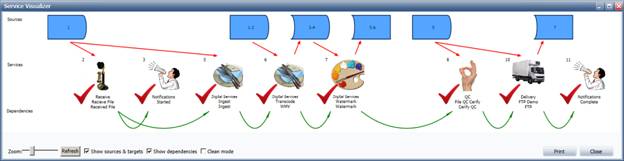
Example Service Visualizer Window
This window is only applicable if you are using the Media Orchestrator functionality.
This window allows you to view a graphical representation of a media order / transmission order, including how sources and services are linked, service profile and spec details, and any established dependencies.
Input sources display on the Sources Row as rectangles with a rounded, convex right side while target sources have a rounded, concave left side. If a source is both an input source and a target source, both the left and the right sides will be rounded.
 Input Source Icon
 Target Source Icon
 Input and Target Source Icon
The Display Sequence Field values of the sources linked to each service will be listed inside each source icon. If more than one source is linked to a service and their IDs are sequential, they will display as a numerical range (e.g., 4–6), and if they are not sequential, the numbers will be separated by a comma (e.g., 2,7,9).
Services (and their associated profiles and specs) are represented graphically by icons, which are established in the ICONS SETUP WINDOW (Media Order and Transmission Order). The system will use the icon established on the Profiles Tab Page for the service, but if the profile’s Icon Field is blank, the system will use the icon established on the Service Tab Page. If neither the service nor the profile have icons defined, a default icon will be presented. Below the icon the window displays the service, profile, and spec descriptions.
When a service is completed, a distinctive red checkmark will be assigned. Red arrows → define which input sources are linked to which services and, if applicable, which services create target sources. Green arrows → show dependencies between services.
WINDOW TOOLS
Zoom
This horizontal slider controls the scaling of the window – text and graphics – from 50% to 200% of the default size.
Refresh
Prompts the system to reread the data from the originating media order open on your computer are redraws the window to reflect any changes you have made.
NOTE
The system does not refresh data from the server, just changes you have made in your instance of Xytech.
Show Sources & Targets
If you uncheck this field the Sources Row will be hidden as will the red arrows linking sources to services.
Show Dependencies
If you uncheck this field the Dependencies Row’s green arrows showing dependencies between services will be hidden.
Clean Mode
This checkbox controls whether or not you want the window to display in “clean mode,” which simplifies complex source and service links. Clean mode is useful when you have many sources and/or services with numerous links.
When this field is checked, if any red arrows linking sources and services would span more than three service slots, then the source icon is repeated (opening a gap in the services if needed) so that there are no such long arrows.
Opens the Print Service Visualizer Window so that you may preview the window and change default settings before printing. In this window you can select a printer, access the Windows’ Page Setup Window, choose a magnification, and print.
Full Screen Mode
Click the icon to expand the Visualizer to full-screen size. Click the icon again to reduce the size.