Copyright ©2025 Fabric | Xytech Help Document Version 1.13
Need Help? Start Here — Welcome to Xytech Help | Xytech Basics | Xytech Notable Features | Using the Help - Best Practices | Xytech Support Web Site
Master Time Overview
For the following features to be available your license file must be properly licensed and the Master Time feature must be activated and configured.
A Master Time feature is available to define and store relevant date and time information relative to a specified reference time zone, which is referred to as the "Master Time Zone." With this feature enabled, users will enter and view date and time information based on the time zones assigned to their user profiles, a time zone they select, or the Master Time Zone of the system; however, all data will be stored in the system-specified Master Time Zone. This allows such date and time information to be stored in a consistent fashion and converted to display in a user's designated date and time regardless of his or her location or time zone.
IMPORTANT CONSIDERATION
Use of this feature will change how date and time information is managed by the Xytech AppServer and how this data is stored in the Xytech database. Furthermore, use of this feature will alter the user experience with regard to how date and time information is displayed and managed in all Xytech application windows, forms, and reports.
FEATURES AND FUNCTIONALITY THROUGHOUT Xytech
Once the Master Time feature has been configured and activated in your Xytech database, the following features and functionality have been enabled.
- The read-only Using Master Time Zone Field in the PREFERENCES – SYSTEM WINDOW will be checked indicating that the Master Time feature is in use.
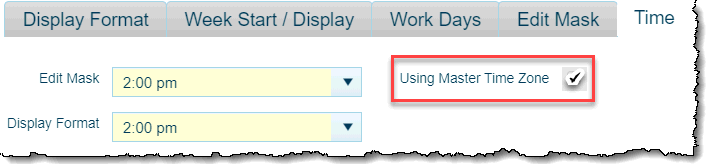
Preferences – System Window with the Master Time Feature Enabled
- The read-only Master Time Zone Field in the PREFERENCES – SYSTEM WINDOW will display the time zone assigned to your Xytech database as the “Master Time Zone.” (The database stores all dates and times in UTC – Coordinated Universal Time. The system converts those database values based on the time zone assigned to the Master Time Zone Field.)
- The TIME ZONES WINDOW in the System Module will be available and will list all of the Microsoft Windows time zones available for your system. (You may change the description or inactivate of any of these default time zones as needed.)
- The current time zone of the system will be shown in the Settings Menu, Options submenu.
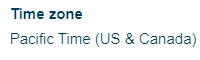
Time Zone Display
- You can establish a default time zone on each USER PROFILE that will be used each time the user logs in. If a default is not established, the system will use the time zone established as the Master Time Zone.
- A Time Zone Field is available from the Xytech Settings > Options menu that allows you to change the time zone of the system from the default to any other available time zone. (Any open windows will not refresh to the newly selected time zone. Close any open windows before changing the system’s time zone or manually change the window’s time zone; see the next item for details.)
- You can change the time zone for a particular window (e.g., application maintenance record, search list window) to be different than the system’s time zone by using the Time Zone Field found on almost every window in Xytech via the LAYOUT SETTINGS BUTTON'S menu. The time zone you select cannot be saved as the window’s default time zone. It will affect the current session only.
NOTE
If you change the time zone for a particular window it will only adjust the dates and times for the current window and any other windows you open from that window. For example, if you change the time zone of the Jobs Search List Window, any job records you open will also be set to that time zone, and any work order records you open from that job will also be set to the same time zone.
- The date and time values for certain record types are affected as follows:
- Work Order (Job Management Module): Transactions always follow the work order record.
- Media Order: Services, operations, and transactions always follow their parent media order record.
- Transmission Order: Services, operations, and transactions always follow their parent media order record.
- Movements (In, Out, Move): Movement detail always follows the parent record.
- Check In / Out (Rental Module): Movement detail always follows the parent record.
- Purchase Order: The Due Date Field value for detail line items will by default follow the Order Due Date Field value of the purchase order.
- Xytech application windows and reports that contain date / time or related date and time attributes will be governed by the Master Time feature. Typical examples are:
- Work Order (Job Management Module): Order Start, Order End, Ship Begin, Ship End, Air Start, and Air End Fields.
- Media Order: Order Date/Time, Due Date/Time, Ship Begin, Ship End, Air Start, and Air End Fields.
- Transmission Order: Order Date/Time, Due Date/Time, Ship Begin, Ship End, Air Start, and Air End Fields.
- Purchase Order: Order Date/Time and Due Date/Time Fields.
- Scheduling Resource: Trx Begin Date, Begin Time, Trx End Date, and End Time Fields in the Roster / Time Off Details Area on the ROSTER / TIME OFFS TAB PAGE.
- Xytech windows and reports that contain a date-only field (i.e., no companion time component) are always displayed relative to the current time zone. Some field examples include: the Invoice Date Field on the Invoice Batch Maintenance Application and its associated search list window, the Due Date, Date Started, and Date Completed Fields on the Job Maintenance Application and its associated search list window, the Asset Date and Shoot Date Fields on the Media Asset Maintenance Application and its associated search list window.
- Xytech search list windows that search on date values always query and return records relative to the current time zone.
- The Timestamp Items Area (a.k.a. Added / Changed By Area) available to many maintenance applications is always displayed relative to the current time zone of the Xytech Application Server (i.e., the server hosting Xytech), not from a user’s local computer.
- The time zone “code” will be appended to the text inserted by Timestamp feature available in notes blocks, e.g., USER NAME 10/26/2012 5:25 PM (UTC-08:00) Pacific Time (US & Canada). (The date and time values are always obtained from the Xytech Application Server – i.e., the server hosting Xytech – not from a user’s local computer.)
- Change Log Windows’ date / time attributes are always displayed relative to the current time zone.
- Origin Time Zone, Origin Start, and Origin End Fields have been added to the Purchase Order and Order documents (Work Order, Media Order, and Transmission Order) that display the time zone, date, and time in use by the system when the record was created. If these fields have been added to layouts, the read-only Origin Start and Origin End Fields will display the date and time of the record when it was created. The Origin Time Zone Field will display the time zone of the record when it was created, but you can change it to see the start and end dates and times in the selected time zone. The Origin Start and Origin End Fields will automatically update when the Origin Time Zone Field value is changed. This functionality may be helpful for users who routinely manage records that span multiple time zones.
Additionally, read-only Origin Time Zone, Origin Trx Begin, and Origin Trx End Fields have been added to the Order Transaction documents (Work Order, Media Order, and Transmission Order). The Origin Time Zone Field will display the time zone assigned to the order record, while the Origin Trx Begin and Origin Trx End Fields display the beginning and ending dates and times of each transaction adjusted for the time zone assigned to the order record.
NOTE
The Origin Time Zone Field on records created before the Master Time feature was initiated will not be assigned a value by default. The Origin Start and Origin End Fields will have values, but they will likely be inaccurate. (The same is true for the Origin Trx Begin and Origin Trx End Fields on order transactions.) If the record is still editable (e.g., an order record has not yet been posted to an invoice batch), you can manually select a time zone from the Origin Time Zone Field’s drop-down list; this will set the Origin Start and Origin End Fields to appropriate values.
- On Purchase Order records, the Due Date Field value of detail items will by default follow the Order Due Date / Time Field value of the record, but the user may change it as needed. Additionally, read-only Origin Trx Begin Dt, Origin Trx End Dt, and W/O Origin Time Zone Fields have been made available to be added to the Details Area of the purchase order. If added to a layout, they will show the order transaction begin and end dates and times for the time zone assigned to the work order linked to the purchase order detail item.
- Similar to the field on the Order documents, an Origin Time Zone Field has been made available on the following documents: the Quick Hold Window available from the Schedule Book, Movement (Movement – In, Movement – Move, and Movement – Out), and Check In / Out (Rental Module). When added to custom layouts, this field will display the time zone of the record when it was created, but you can change it as needed. This allows the relevant time zone of the record to be identified.
- Each tab on the Schedule Book may be set to a different time zone by using the TIME PROPERTIES WINDOW'S Time Zone Field located in the More Area. The time zone assigned to the tab displays in the upper left above the scheduling grid.
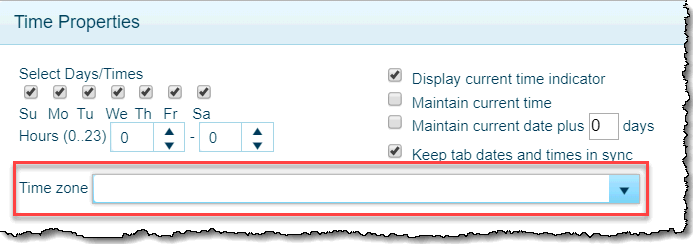
Schedule Book with the Master Time Feature Enabled
All of the date and time display and functionality on the tab will be controlled by the time zone selected in the Time Properties Window. When you save a scheduling view, the selected time zone(s) will also save for each tab page. Date and time data for all bookings and roster items in the Schedule Book are displayed relative to the time zone assigned to a tab page. Additionally, conflict checking that incorporates both date and time is also always relative to the displayed date and time information of the relevant records; however, conflict checking for defined HOLIDAYS will be a validation of the currently displayed date / time against the absolute date and time value entered for the holiday. The Origin Time Zone, Origin Trx Begin, and Origin Trx End Fields from the Order and Order Transactions documents can be configured to display in the booking bar and hover text via the Bar Text Window accessible from the DISPLAY POP-UP WINDOW.
AREAS NOT USING MASTER TIME FEATURE
While the Master Time feature impacts almost every date and time field, display, and functionality throughout the system, several areas do not use the Master Time feature:
- The Begin Date / Time and End Date / Time Fields in the HOLIDAYS WINDOW are not offset by the Master Time feature. The date and time values entered are absolute (as entered).
- The B\Begin Date and End Date Fields on the INFO TAB PAGE of the Time Card Batch Maintenance Application and its associated search list window are also not governed by the Master Time feature. The dates and times of activities on the STANDARD ACTIVITIES TAB PAGE will adjust according to the currently set time zone.
It is important to note that users operating from time zones other than the one from which the time card batch was created will need to ensure that their activity date and time entries are within the begin and end dates of the batch. Validation logic that compares the date and time values entered on the activities to the date and time values of the designated order will warn the user when this is not the case. This validation logic will also make sure that the comparison is conducted against the order's displayed date and time values, not the system (base) time values.