Copyright ©2025 Fabric | Xytech Help Document Version 1.13
Need Help? Start Here — Welcome to Xytech Help | Xytech Basics | Xytech Notable Features | Using the Help - Best Practices | Xytech Support Web Site
Xytech Web Client Chrome Browser Shortcut
USER EXPERIENCE TIP: To improve the Web Client experience create a Chrome shortcut as a window.
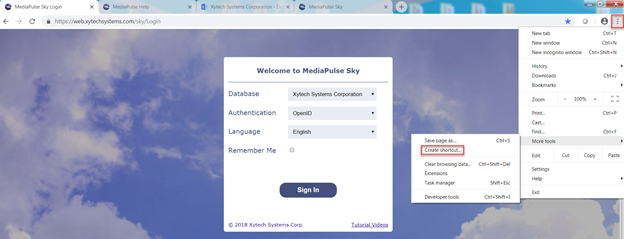
Step 1: Browse to the Web Client Login page using Chrome, then click the Customize and Control Google Chrome icon. Open the ‘More tools’ submenu and select ‘Create shortcut’.
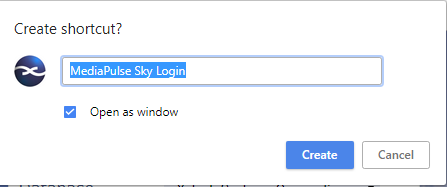
Step 2: Edit the shortcut description if you want, then click ‘Create’. This will create a shortcut on the desktop.
NOTE:
The ‘Open as window’ option must be checked. If ‘Open as window’ is not available when creating this shortcut, see the additional instructions at the end of this topic.
Step 3: Drag the shortcut onto your taskbar to pin it there, then delete the original shortcut from the desktop.

The shortcut now behaves like any other Window’s app with regards to min/max/resize.
NOTE
The first time you open the shortcut, it may appear as a partial screen. Maximize it or resize it however you wish.
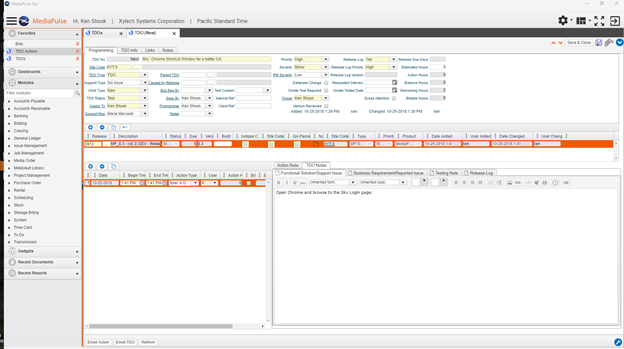
The user’s Web Client experience now acts similar to any other Window’s app. Notice there is no indication you are running in a browser:
ADDITIONAL INSTRUCTIONS
Your version of Chrome may not display the “Open as Window” checkbox
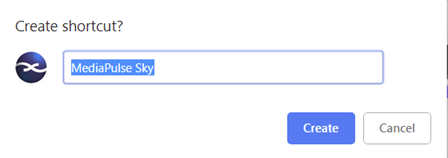
To have Web Client open in its own window and have the appearance of an app, follow these steps:
- Create the shortcut on the desktop as listed above.
- In the chrome address bar go to chrome://apps
- Right click on the desired app in the chrome window and choose "open in window".
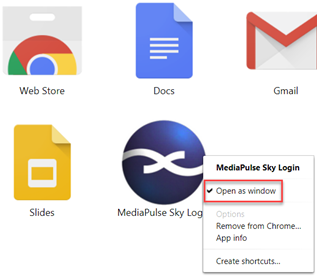
- The shortcut should now open in its own window and have the full-screen appearance of an app.